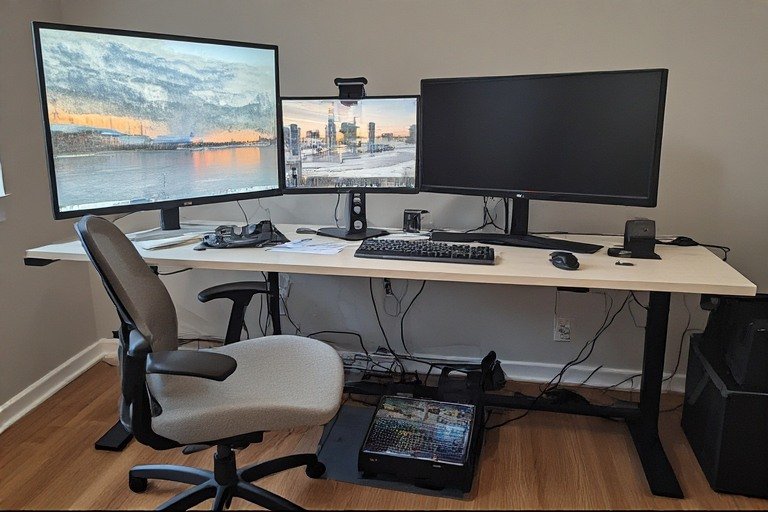
If you spend six or more hours a day at a desk, your setup is either supporting your body — or slowly working against it. Neck stiffness, lower back pain, and sore wrists aren’t just minor annoyances. They’re early warning signs that your workstation needs attention.
The good news? Most fixes are simple, low-cost, and take less than an hour to implement. This complete guide to ergonomic desk setup walks you through every element — chair, desk height, monitor, keyboard, mouse, lighting, and movement — with exact measurements, expert-backed data, and a full checklist at the end. If you’re still exploring how to arrange your space overall, start with our desk setup ideas for inspiration before dialing in the ergonomics.
Looking for a budget-friendly sit-stand desk that delivers on ergonomics? Read our full review of the Fezibo height adjustable electric standing desk — one of the best-value electric standing desks on Amazon.
Why Ergonomics Matters: The Data
| Metric | Figure | Source |
|---|---|---|
| MSD reduction from ergonomic setup | Up to 60% | OSHA |
| Productivity increase | Up to 20% | Journal of Applied Ergonomics |
| Back & neck pain reduction (sit-stand desk) | 54% | CDC |
| Productive days lost to MSDs per worker/year | ~23 days | Cleveland Clinic |
| Worker injury cases from MSDs | ~30% | U.S. Bureau of Labor Statistics |
| Daily fatigue drop with sit-stand setup | 18% | 2024 Study |
📋 In This Guide:
1. What Is an Ergonomic Desk Setup?
Ergonomics — from the Greek ergon (work) and nomoi (natural laws) — is the science of designing the work environment to fit the worker, rather than forcing the worker to adapt. An ergonomic desk setup arranges your furniture, equipment, and posture so your joints stay in neutral positions, muscles work minimally, and your spine maintains its natural curves throughout the day.
Key Principle: Neutral posture means joints at natural angles, muscles in relaxed states, and evenly distributed weight. When achieved, blood flows freely, fatigue decreases, and focus improves significantly.
Poor ergonomics cause cumulative stress injuries that affect joints, nerves, and circulation. Neck tilt from a low screen, an unsupported lower back, and wrist extension during typing all contribute to long-term discomfort that can take months or years to reverse. Whether you’re building a new work from home desk setup or fixing an existing office space, the principles below apply equally.
2. Ergonomic Chair Setup — Your Foundation
Your chair determines your entire postural foundation. Get this wrong and every other adjustment becomes a compensation for an incorrect base. Use the 90-90-90 rule as a starting point: hips, knees, and elbows should all form roughly 90-degree angles.
Seat Height
Push your hips as far back in the chair as possible. Adjust seat height so your feet rest flat on the floor and your knees are equal to, or slightly lower than, your hips. For most people this means the seat sits 16–21 inches off the floor. If your desk height forces you to raise the chair, use a footrest rather than letting your feet dangle.
Backrest Angle
Set the backrest to a 100–110 degree reclined angle — not straight upright at 90 degrees. A slight recline reduces spinal disc pressure by up to 50% compared to sitting bolt upright. Make sure lumbar support hits the natural inward curve of your lower back, typically 6–10 inches above the seat.
Armrests
Adjust armrests so your shoulders stay completely relaxed — not shrugged or drooped. Elbows should rest lightly at your sides. If armrests push your shoulders up or force your arms outward, lower them or remove them entirely.
Seat Depth
Leave a 2–3 finger gap (approximately 1–2 inches) between the front edge of the seat and the back of your knees. This prevents compression of the popliteal vessels behind the knee, which can restrict circulation to your lower legs.
✅ Quick Check: Sit at your desk right now. Can you slide two fingers between the seat edge and the back of your knees? Are your feet flat on the floor? Are your shoulders relaxed? If not, adjust before continuing.
3. Desk Height — The Most Overlooked Setting
Standard desk heights of 28–30 inches are designed for someone 5’8″–5’10” tall. For anyone shorter or taller, that fixed height creates systematic strain. The correct desk height allows your forearms to rest parallel to the floor while typing, with elbows bent at roughly 90 degrees and shoulders fully relaxed.
The correct desk height allows your forearms to rest parallel to the floor while typing — see our complete ideal desk height guide for a full chart covering every height from 4’10” to 6’4″, including wheelchair users.
If you use a wheelchair or are setting up an accessible workspace, see our complete wheelchair desk setup ideas guide — covering ADA desk requirements, accessible desk height, storage solutions, and adjustable table options.
| Your Height | Ideal Desk Height (Sitting) | Monitor Distance |
|---|---|---|
| 5’0″ – 5’4″ | 26 – 28 inches | 20 – 24 inches |
| 5’5″ – 5’9″ | 28 – 30 inches | 24 – 28 inches |
| 5’10” – 6’2″ | 30 – 32 inches | 26 – 32 inches |
If your desk is too high and cannot be adjusted, raise your chair and use a footrest. If it’s too low, place sturdy blocks under the legs. Working with a budget-friendly IKEA desk? Our IKEA desk setup ideas cover the most popular models and exactly how to configure them to hit the right height for your body. For small spaces where desk real estate is limited, our small desk setup ideas show how to maximise ergonomics without a large footprint.
💡 Desk Hygiene: Keep the area under your desk completely clear. Storing printers, boxes, or bags under your workspace restricts leg room and forces awkward postures that strain your lower back and hips. For a clutter-free surface above the desk too, see our clean desk setup ideas.
4. Monitor Placement — Protecting Your Neck
Poor monitor placement is one of the most common — and most damaging — ergonomic mistakes. A screen that’s too low forces you to tilt your chin down, straining the neck extensors. Too high, and you’ll extend your neck backward, leading to tension headaches and shoulder tightness. Correct monitor placement cuts neck pain by up to 40% (Journal of Occupational Health).
Single Monitor Setup
- Place the monitor directly in front of you, centered with your keyboard.
- Distance: arm’s length away — approximately 20–26 inches. Quick test: extend your arm fully; your fingertips should just touch the screen.
- Height: the top of the screen should sit at or slightly below your eye level. Your eyes should naturally align with the top third of the display.
- Tilt: angle the screen back 10–20 degrees so it faces your natural downward line of sight.
Dual Monitor Setup
Identify your primary screen — the one you use 80% of the time — and center it directly in front of your keyboard. A common mistake is placing two monitors symmetrically when you use one far more, which forces constant neck rotation all day.
- Center your primary monitor directly ahead.
- Angle the secondary monitor 15–20 degrees inward so you can view it with a slight head turn rather than a full rotation.
- Both screens should sit at the same height.
If you’re building a dual-screen gaming or creative station, our gaming desk setup ideas include several multi-monitor layouts with cable management tips that keep the space both functional and ergonomic.
Laptop Users
Using a laptop directly on a desk inevitably compromises either neck or wrist posture — the screen height and keyboard height cannot both be correct simultaneously. The fix is simple: raise the screen to eye level using a laptop stand or external monitor, then pair it with a separate external keyboard and mouse. Our full laptop desk setup ideas guide covers the best stand options and how to arrange peripherals around a laptop-first workspace.
🔎 Cornell Test: Sit at your desk, close your eyes, and completely relax your head into a neutral position. Open your eyes. Where does your gaze naturally land? That is exactly where the centre of your screen should be.
5. Keyboard and Mouse — Protecting Your Wrists
Wrist and forearm problems are among the most career-damaging ergonomic injuries. A standard flat keyboard forces wrist extension and ulnar deviation (angling outward toward the pinky), which compresses the carpal tunnel over time. Small adjustments here yield significant long-term payoffs.
Keyboard Placement
- Position the keyboard directly in front of you, centered with your monitor.
- Keep it at or just below resting elbow height — forearms should be parallel or slightly angled downward toward the keys.
- Wrists should float in a neutral position: not bent up, down, or sideways while typing.
- Keep keyboard and mouse within 8–12 inches of your resting hand position to reduce shoulder strain from reaching.
- If using an articulating keyboard tray, angle it slightly away from your body (negative tilt) to keep wrists straight.
If you’re already experiencing wrist pain or tingling, our dedicated carpal tunnel desk setup guide covers the exact fixes — including negative tilt, mouse type, and setup-specific adjustments — to relieve symptoms fast.
Mouse Placement
- Keep your mouse as close to your keyboard as possible — same surface, same height.
- Keep it close to your shoulder to minimise reach distance. Extended reaching forces your shoulder into abduction, creating sustained tension.
- Consider switching to an ergonomic vertical mouse or trackball to reduce wrist pronation and forearm strain.
If the pain is coming specifically from your mouse rather than your keyboard, our guide on wrist pain from mouse use covers position, grip, DPI, and mouse type fixes in detail.
⚠️ Carpal Tunnel Prevention: If your desk has a hard, unpadded edge, pad it or use a wrist rest. Prolonged contact with a hard edge causes “contact stress” that compresses nerves and restricts blood flow to the wrist.
6. Sit-Stand Desks — Movement as Medicine
No single ergonomic position is ideal for eight hours. The human body is designed to move. Alternating between sitting and standing is one of the most impactful changes you can make to your workstation — and the research backs it up strongly.
Sit-stand desks reduce upper back and neck pain by 54%
when sitting time is cut by just over 1 hour daily — CDC Research
How to Use a Sit-Stand Desk Correctly
- Target a sitting-to-standing ratio of 1:1 or 2:1. The goal is alternation, not standing all day.
- Transition positions every 30–60 minutes. Set a timer if needed.
- When standing, apply the same ergonomic principles — elbows at 90 degrees, monitor at eye level, weight distributed evenly across both feet.
- While standing, shift your weight, stretch your calves, or walk briefly in place to keep blood circulating.
- Pair with an anti-fatigue mat to reduce pressure on feet and lower legs during standing periods.
7. Lighting and Eye Health
Proper lighting reduces eye strain and fatigue, which in turn affects posture — people tend to lean forward toward a dim or glare-ridden screen, creating a cascade of neck and shoulder problems. The American Optometric Association recommends workspace lighting between 500–750 lux.
Natural Light Positioning
Natural side lighting is ideal. Position your desk so windows are to the left or right of your monitor — not directly behind or in front of it. A window behind you creates glare on your screen. A window directly in front causes squinting and eye strain throughout the day. If you want a workspace that balances aesthetics with smart light placement, our aesthetic desk setup ideas include several layouts that handle natural light well.
Artificial Lighting Tips
- Use indirect or diffuse overhead lighting rather than direct bright spots above the screen.
- Avoid fluorescent tubes directly above your monitor, which create reflected glare.
- A monitor light bar, positioned above the screen and aimed downward, illuminates your desk without shining into the display.
- Use warm-to-neutral colour temperature (3000–5000K) to reduce eye fatigue during long sessions.
The 20-20-20 Rule
Every 20 minutes, look at an object at least 20 feet away for at least 20 seconds. This relaxes the ciliary muscles in your eyes that remain contracted during close-up screen work. Some practitioners recommend the 30-30-1 variant: look at a distant object for 30 seconds to 1 minute every 30 minutes. Both are recognised in visual ergonomics.
8. Movement and Micro-Breaks
Even the most perfectly arranged ergonomic desk setup cannot save you if you sit frozen in one position for eight consecutive hours. Static posture — even a correct static posture — causes muscle fatigue and restricts circulation. Your body needs movement to stay healthy.
Recommended Break Schedule
- Every 20–30 minutes: shift your posture, rest your hands, look away from the screen.
- Every hour: stand up, walk to another room, stretch your arms overhead, roll your shoulders — 2–3 minutes of light movement.
- Every 2 hours: take a 5–10 minute break away from your screen entirely.
Quick Desk Stretches
These take under 2 minutes and can be done without leaving your workspace:
- Neck rolls: gently tilt your head side to side, ear toward shoulder.
- Wrist extensions: press your palms together in front of your chest, or press the backs of your hands together with fingers pointing down.
- Shoulder rolls: roll both shoulders backward in large circles, 5 reps.
- Hip flexor stretch: sit at the edge of your chair, extend one leg back and press the front of that hip forward.
- Overhead reach: extend both arms overhead, interlace fingers, and press toward the ceiling.
9. Ergonomic Accessories Worth the Investment
You don’t need to buy everything at once. Identify your biggest pain point first, address it, then refine. The accessories below are ranked by impact-to-cost ratio. If desk space is tight and you’re worried about clutter, our small desk setup ideas show which of these accessories work well in compact configurations.
| Accessory | Problem It Solves | Priority |
|---|---|---|
| Monitor arm | Imprecise screen height and depth adjustment | 🔴 High |
| Laptop stand + external keyboard | Neck strain from low laptop screen | 🔴 High |
| Footrest | Feet dangling when desk is too high | 🔴 High |
| Lumbar cushion | Lower back pain in chairs without proper support | 🟡 Medium |
| Wrist rest | Contact stress on keyboard and desk edge | 🟡 Medium |
| Ergonomic vertical mouse | Wrist pronation and forearm strain | 🟡 Medium |
| Document holder | Neck rotation from looking down at papers | 🟡 Medium |
| Anti-fatigue mat | Foot and leg pressure when using a standing desk | 🟡 Medium |
| Headset | Neck strain from cradling the phone | 🟢 Low |
| Monitor light bar | Glare, screen reflections, eye strain | 🟢 Low |
10. Ergonomic Desk Setup Checklist ✅
Use this checklist to audit your workstation from top to bottom. Each element builds on the previous one.
Chair
- ☐ Feet rest flat on the floor (or on a footrest)
- ☐ Thighs parallel to the floor, knees at or slightly below hip height
- ☐ 2–3 finger gap between seat edge and back of knees
- ☐ Backrest reclined 100–110° with lumbar support at the lower back curve
- ☐ Armrests allow shoulders to stay completely relaxed
Desk
- ☐ Forearms parallel to the floor while typing, elbows at ~90°
- ☐ No items stored under the desk blocking leg movement
- ☐ Hard desk edges padded or fitted with a wrist rest
Monitor
- ☐ Top of screen at or slightly below eye level
- ☐ Screen 20–26 inches from eyes (arm’s length away)
- ☐ Screen tilted back 10–20 degrees
- ☐ No glare or reflection on the screen surface
Keyboard & Mouse
- ☐ Keyboard centered in front of monitor
- ☐ Keyboard at or just below elbow height
- ☐ Wrists neutral (not bent up, down, or sideways) while typing
- ☐ Mouse on the same surface and at the same height as the keyboard
- ☐ Mouse within easy reach without stretching the shoulder
Environment & Habits
- ☐ Natural or artificial light comes from the side, not behind the screen
- ☐ No bright light source directly in your field of vision
- ☐ Taking a movement break every 30–60 minutes
- ☐ Following the 20-20-20 rule for eye health
11. Common Ergonomic Mistakes to Avoid
| Mistake | What It Causes | The Fix |
|---|---|---|
| Screen too low (laptop on desk) | Forward head posture, neck strain | Laptop stand + external keyboard |
| Chair too high, feet dangling | Thigh pressure, restricted circulation | Lower chair or use a footrest |
| Desk too high for chair height | Shoulder shrugging, forearm strain | Raise chair + use footrest, or lower desk |
| Mouse too far from keyboard | Shoulder abduction, upper arm tension | Move mouse close to keyboard body |
| Sitting bolt upright at 90° | Increased spinal disc compression | Recline backrest to 100–110° |
| Symmetric dual monitor placement | Constant neck rotation all day | Center primary monitor, angle secondary |
| Cradling phone between head and neck | Severe neck and shoulder strain | Use a headset or speakerphone |
| Storing items under the desk | Restricted leg room, awkward postures | Clear the under-desk area entirely |
| Never taking movement breaks | Muscle fatigue, circulation problems | Set hourly reminders to stand and move |
12. Ergonomic Setup Measurements by User Height
Because standard desks are sized for a 6’4″ male (the origin of the common 29.5″ standard), most people are working at a desk that is functionally too high. Use this table to find your target measurements at a glance.
| Height | Desk (Sitting) | Desk (Standing) | Monitor Dist. | Chair Height |
|---|---|---|---|---|
| 4’10” – 5’0″ | 24–26″ | 36–39″ | 18–22″ | 14–16″ |
| 5’1″ – 5’4″ | 26–28″ | 38–41″ | 20–24″ | 15–18″ |
| 5’5″ – 5’8″ | 28–29″ | 40–43″ | 22–26″ | 17–19″ |
| 5’9″ – 6’0″ | 29–30″ | 43–46″ | 24–28″ | 18–21″ |
| 6’1″ – 6’4″ | 30–32″ | 46–49″ | 26–32″ | 20–22″ |
Final Thoughts: Build Your Setup Incrementally
You don’t need to fix everything at once. Ergonomic improvement is cumulative. Start with your single biggest pain point — most often the monitor height or chair seat height — fix it today, and you’ll notice the difference within a week. Then work through the checklist section by section.
The goal isn’t a perfect showroom setup. The goal is a workspace where your body can maintain neutral, relaxed positions throughout the day — one that supports your work rather than fighting against it. If you want to see what a clean, minimal ergonomic workspace actually looks like in practice, our minimalist desk setup ideas show how simplicity and proper ergonomics go hand in hand.
💡 Pro Tip: Photograph your current setup from the side. Compare your posture against the guidelines above. One image reveals more than a week of self-assessment. Small corrections compound into major relief over time.
Ready to keep building? Head over to our full desk setup ideas hub to explore layouts, styles, and gear for every type of workspace.
Sources: OSHA Computer Workstations eTool · Mayo Clinic Office Ergonomics Guide · CDC Sit-Stand Desk Research · Cleveland Clinic Ergonomics Data · U.S. Bureau of Labor Statistics Injury Reports · NIOSH Musculoskeletal Disorder Guidelines · Journal of Applied Ergonomics · Journal of Occupational Health · Human Factors and Ergonomics Society · American Optometric Association