
You’re not here because you’re curious about carpal tunnel syndrome. You’re here because your wrists already hurt — and you want to know exactly what to change at your desk to make it stop.
Most guides online are written for prevention. This one is written for you — someone already feeling the tingling, numbness, or aching that signals your current setup is compressing the median nerve in your wrist. The good news: the right carpal tunnel desk setup changes can reduce pressure inside the carpal tunnel by nearly two-thirds, without buying anything expensive.
Before going deeper, make sure your foundation is solid — this guide works best alongside our full ergonomic desk setup guide, which covers the complete workstation picture.
⚡ 10-Minute Quick Fixes (Do These First)
- Lower your keyboard so it sits 1–2 inches below your elbow
- Tilt your keyboard slightly away from you (negative tilt — back edge higher than front)
- Move your mouse right next to your keyboard — no gap
- Raise your monitor so the top of the screen is at eye level
- Stop resting your wrists on the desk while typing — hover or use a palm rest
📋 In This Guide:
- What’s Actually Causing Your Wrist Pain at the Desk
- The Wrist-Neck-Shoulder Chain Nobody Talks About
- Fix 1 — Keyboard Height & Negative Tilt
- Fix 2 — Mouse Position & Type
- Fix 3 — Desk Height by Your Body
- Fix 4 — Monitor Height (It Affects Your Wrists)
- Fix 5 — Eliminate Wrist Contact Pressure
- Fix 6 — Micro-Break Routine
- Fix 7 — Setup-Specific Adjustments (Laptop, Small Desk, Gaming)
- Full CTS Desk Checklist
- When to See a Doctor
1. What’s Actually Causing Your Wrist Pain at the Desk

Carpal tunnel syndrome occurs when the median nerve — which runs from your neck, down your arm, through the narrow carpal tunnel in your wrist, and into your thumb, index, middle, and half of your ring finger — gets compressed. The result: tingling, numbness, aching, or weakness, often worse at night.
At a desk, the most common culprits are:
- Wrist extension — bending the wrist upward while typing, which is what happens when your keyboard or desk is too high
- Wrist flexion — bending the wrist downward, common when resting wrists on a hard desk edge
- Ulnar deviation — angling the wrist outward toward the pinky, caused by a keyboard that’s too wide or placed to the side
- Direct compression — resting the wrist or palm on a hard surface while typing
- Static posture — holding the same position for hours, which restricts blood flow and allows metabolic waste to accumulate in the tendons
📊 The Data: Keeping the wrist within 0–5° of neutral reduces pressure inside the carpal tunnel from approximately 32 mm Hg down to 11 mm Hg — nearly a two-thirds reduction — compared to a bent wrist position.
2. The Wrist-Neck-Shoulder Chain Nobody Talks About
Here’s what most carpal tunnel guides miss entirely: your wrist pain often isn’t just a wrist problem. It’s the end result of a chain reaction that starts higher up your body.
- Monitor too low → you lean forward to see the screen
- Leaning forward → your neck tilts down, shifting load onto your shoulders
- Shoulders load up → your arms angle inward, your wrists bend to compensate
- Bent wrists on the keyboard → median nerve compression → carpal tunnel symptoms
This is why fixing your monitor height alone — even before touching your keyboard — sometimes immediately reduces wrist discomfort. Fix the chain from the top down, not just at the wrist.
For people working from home where the full chain is often broken by makeshift setups, see our work from home desk setup guide for environment-specific advice.
Fix 1 — Keyboard Height & Negative Tilt
This is the single highest-impact change for carpal tunnel. Most standard desks are too high for proper keyboard placement — which forces wrist extension every time you type.
Correct Keyboard Height
Your keyboard should sit 1–2 inches below your natural elbow height when your arms hang relaxed at your sides. For most people this is 26–30 inches from the floor — significantly lower than standard 29.5″ desk height.
| Your Height | Target Keyboard Height | Fix If Desk Is Too High |
|---|---|---|
| 5’0″ – 5’4″ | 24–26 inches | Keyboard tray or raise chair + footrest |
| 5’5″ – 5’8″ | 26–28 inches | Keyboard tray or raise chair + footrest |
| 5’9″ – 6’0″ | 27–29 inches | Adjust desk height or keyboard tray |
| 6’1″ – 6’4″ | 29–31 inches | Height-adjustable desk |
Negative Tilt — The Underrated Fix
Most keyboards sit flat or tilt toward you (positive tilt — feet propped up at the back). This is the default and it’s wrong for wrist health. It forces your wrists to extend upward to reach the keys.
Negative tilt means the back edge of the keyboard is slightly higher than the front — sloping away from you at 5–15 degrees. This lets your wrists stay straight and your hands fall naturally onto the keys. If your keyboard tray doesn’t support negative tilt, fold down the keyboard’s feet entirely and try using a tray that angles away.
✅ Quick Test: Look at your wrists from the side while typing. They should form a straight line with your forearms — not angled up or down. Any angle means your setup needs adjusting.
Fix 2 — Mouse Position & Type
Your mouse is often the bigger culprit than your keyboard — because mouse use involves constant low-level wrist deviation while your arm stays extended, creating sustained compression.
Mouse Placement Rules
- Mouse must sit immediately next to the keyboard — no gap, same surface, same height
- Keep it close to your body so your elbow stays near your side — extended reaching forces your shoulder into abduction and your wrist into deviation
- Never rest your wrist on the desk edge and pivot from there — this creates direct compression on the carpal tunnel
- Keep your wrist straight while moving the mouse — the movement should come from your elbow and shoulder, not your wrist
Mouse Type — What Actually Helps
| Mouse Type | How It Helps CTS | Best For |
|---|---|---|
| Vertical mouse | Handshake position eliminates forearm pronation (twisting) | Most desk workers |
| Trackball | Eliminates wrist movement entirely — cursor controlled by fingers | People with active CTS symptoms |
| Large ergonomic mouse | Full palm support reduces grip tension | People with small standard mice |
| Standard flat mouse | Forces forearm pronation — worst option for CTS | Avoid if symptomatic |
Fix 3 — Desk Height by Your Body
Standard desk heights are built for a 6’4″ body. If you’re shorter, your desk is functionally too high — which means every hour you type, your wrists are bent upward, compressing the carpal tunnel repeatedly.
If you have a fixed-height desk, your options in priority order are:
- Keyboard tray — mounts under the desk, brings keyboard to correct height independently of desk surface. Best fix for fixed desks.
- Raise your chair + use a footrest — bring your body up to the desk while keeping feet supported
- Desk risers/blocks — if the desk is too low, place blocks under the legs
- Height-adjustable sit-stand desk — the permanent solution
Working with a compact or budget desk? Our small desk setup ideas cover how to get keyboard positioning right even on minimal surface space. If you’re on an IKEA desk, our IKEA desk setup guide covers exactly which models are adjustable and how to configure them.
Fix 4 — Monitor Height (It Directly Affects Your Wrists)
As covered in the chain section above, a low monitor is a hidden driver of wrist pain. When you lean forward to see a screen that’s too low, your entire upper body posture collapses — and your wrists end up bearing compensatory load.
- Top of your screen should be at or slightly below eye level — not the middle of the screen, the top
- Screen should be about arm’s length away (20–26 inches)
- If you’re on a laptop, this is nearly impossible without a stand — the screen will always be too low if the laptop is flat on a desk
For laptop users especially: raising the screen with a stand and adding an external keyboard is one of the highest-ROI changes for wrist health. See our laptop desk setup ideas for stand recommendations and how to arrange the peripherals around a laptop-first workspace.
Fix 5 — Eliminate Wrist Contact Pressure
Direct pressure on the wrist and palm compresses the median nerve even when your wrists are in a neutral angle. Many people rest their wrists on the desk edge constantly while typing — this is one of the most common and most damaging habits.
Rules for Wrist Contact
- While typing: never rest your wrists on anything. Wrists should hover above the keyboard. The movement should come from your arms, not your fingers reaching while the wrists are pinned down.
- During pauses: a palm rest is fine. Wrist rests and palm rests are for resting during breaks — not for supporting your wrists while actively typing or clicking.
- Pad hard desk edges. If your desk has a sharp or hard front edge, pad it. Even brief repeated contact there irritates the flexor tendons and can mimic or worsen CTS.
- Wrist rest positioning: if you use one, it should support your palm, not the wrist joint directly. Palm support = good. Wrist joint pressure = adds to nerve compression.
Fix 6 — Micro-Break Routine for Active Symptoms
Static posture is a major, underappreciated driver of CTS. Even a perfectly neutral wrist position becomes damaging if held without movement for hours — the muscles stay contracted, blood flow is restricted, and metabolic waste accumulates in the tendons around the median nerve.
Break Schedule
- Every 20–30 min: rest your hands completely, shake them out gently, look away from the screen
- Every hour: do the wrist stretches below, stand up, move for 2–3 minutes
Wrist Stretches (Do These Every Hour)
- Prayer stretch: press palms together in front of chest, hold 15–30 seconds
- Reverse prayer: press backs of hands together with fingers pointing down, hold 15–30 seconds
- Wrist circles: make a loose fist and slowly rotate each wrist in both directions, 5 reps each
- Finger extension: spread all fingers wide and hold for 5 seconds, repeat 5 times
- Tendon glide: start with fingers straight, curl to a hook fist, then full fist, then back — 5 slow reps
Fix 7 — Setup-Specific Adjustments
Generic ergonomic advice assumes you have a full desktop setup. Most people don’t. Here’s how to apply CTS fixes to your specific setup type.
Laptop-Only Setup
This is the worst setup for carpal tunnel with no modifications. The keyboard and screen are fixed together, so you can’t optimise both simultaneously.
- Raise the laptop to eye level using a stand — this fixes the monitor chain issue
- Add an external keyboard at the correct height — this is non-negotiable for anyone with CTS symptoms
- Add an external mouse positioned right next to the keyboard
- Never use a laptop trackpad for extended periods — it forces unnatural thumb abduction
→ See our laptop desk setup ideas for a full peripheral arrangement guide.
Small Desk Setup
Limited surface space makes correct mouse-keyboard positioning harder and often leads to the mouse being pushed too far to the side.
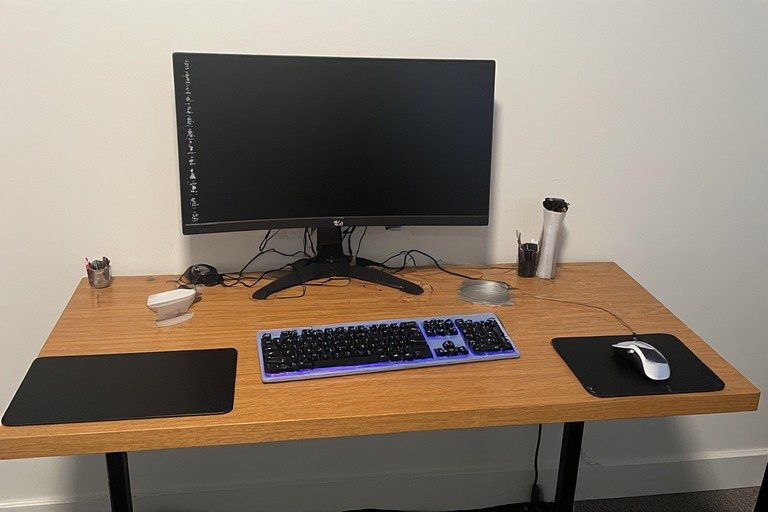
- Use a compact (tenkeyless) keyboard — removing the numpad brings the mouse 3–4 inches closer to your body
- A trackball mouse takes up less space than a standard mouse and eliminates lateral wrist movement entirely
- A keyboard tray can free up surface space and also solve the height issue simultaneously
→ See our small desk setup ideas for compact ergonomic layouts.
Gaming Desk Setup
Gamers are particularly high-risk for CTS due to high-repetition mouse movements, extended sessions, and desks often set up for aesthetics rather than wrist health.
- Wide mouse pads are good — but they encourage placing the mouse too far from the keyboard. Keep the mouse starting position close to your body.
- Gaming mice tend to be low-profile which increases wrist extension — consider a taller ergonomic gaming mouse
- High polling rate and DPI settings can reduce the physical distance your wrist needs to travel — lower DPI = more wrist movement = more strain
- Set a hard stop on session length — even 5 minutes every hour makes a measurable difference
→ See our gaming desk setup ideas for layouts that balance performance and wrist health.
Minimalist / Clean Desk Setup
Minimalist setups often look great but create CTS risk through wide-open desk surfaces that encourage extended mouse reach and no wrist support infrastructure.
- Use wireless peripherals to eliminate cable tension that pulls hands into awkward positions
- A sleek palm rest is ergonomic and minimal — it doesn’t break the aesthetic
- Monitor arms are both minimalist and ergonomically superior to stands for achieving eye-level screen height
→ See our minimalist desk setup ideas and clean desk setup ideas for wrist-friendly minimalist layouts.
Full Carpal Tunnel Desk Setup Checklist ✅
Keyboard
- ☐ Keyboard sits 1–2 inches below elbow height
- ☐ Negative tilt applied (back edge higher than front, 5–15°)
- ☐ Keyboard centered directly in front of monitor
- ☐ Wrists hover neutral while typing — not resting on anything
- ☐ Tenkeyless or compact layout if mouse was previously too far away
Mouse
- ☐ Mouse immediately next to keyboard — no gap
- ☐ Same height as keyboard
- ☐ Wrist straight (not pivoting from a resting point) during use
- ☐ Ergonomic mouse type considered (vertical or trackball if symptomatic)
Desk & Chair
- ☐ Desk height allows forearms parallel to floor at correct keyboard height
- ☐ Chair height set so feet are flat on floor
- ☐ Armrests support forearms without raising shoulders
- ☐ Hard desk edge padded or avoided
Monitor
- ☐ Top of screen at or slightly below eye level
- ☐ No forward lean required to read the screen
- ☐ Arm’s length away (20–26 inches)
Habits
- ☐ Wrist stretches done every hour
- ☐ Hands shaken out / rested every 20–30 minutes
- ☐ Palm rest used only during pauses, not while actively typing
- ☐ Mouse hand switched occasionally if one-hand dominant
When to See a Doctor
Ergonomic fixes are powerful for prevention and mild-to-moderate symptoms — but they’re not a substitute for medical evaluation if your symptoms are serious. See a doctor if you experience:
- Night-time numbness that wakes you up — this is the most specific early sign of true nerve compression, occurring in 80% of confirmed CTS cases
- Tingling limited to thumb, index, and middle fingers — classic median nerve distribution, not general wrist soreness
- Grip weakness or dropping objects — loss of thumb pinch strength is strongly correlated with advanced nerve impairment
- Symptoms persisting after 4+ weeks of ergonomic corrections
- Visible swelling or inflammation in the wrist
Non-surgical treatments — night splints, physical therapy, corticosteroid injections — are effective for most cases when caught early. Night-time neutral wrist splints improve symptoms in around 80% of mild cases. The key is not waiting until the damage is severe.
Start With One Change
You don’t need to overhaul everything today. The highest-impact single change for most people is lowering the keyboard height and applying negative tilt — this addresses wrist extension, the root cause of most desk-related CTS. Do that today, add the mouse positioning fix tomorrow, and work through the checklist over the following week.
Pair these fixes with the full ergonomic desk setup guide to address the complete wrist-neck-shoulder chain — and check our desk setup ideas hub for layout inspiration that puts ergonomics first.
💡 Remember: Wrist pain is the last symptom in a chain that starts at your monitor. Fix from the top down — screen height first, then keyboard, then mouse — and you’ll address the root cause rather than just the symptom.
Sources: OSHA Computer Workstations eTool · CDC Ergonomics Research · Mayo Clinic Carpal Tunnel Guide · Journal of Occupational Health · Human Factors and Ergonomics Society · Wipperman & Goerl, American Family Physician (2016) · Li & Jordan, Human Movement Science (2023) · Mouzakis et al, Journal of Biomechanics (2014) · Cornell University Ergonomics Lab · ISO 11226:2000 Static Working Postures Standard